 A4 Front Page Studio
JPG vs PNG vs WebP: Which Image Format Should You Use?
Image formats look like a technical detail until a form refuses your file or a photo comes out larger than expected. The three formats you will meet most often are JPG, PNG and WebP. Each is good at something different.
JPG: small photos
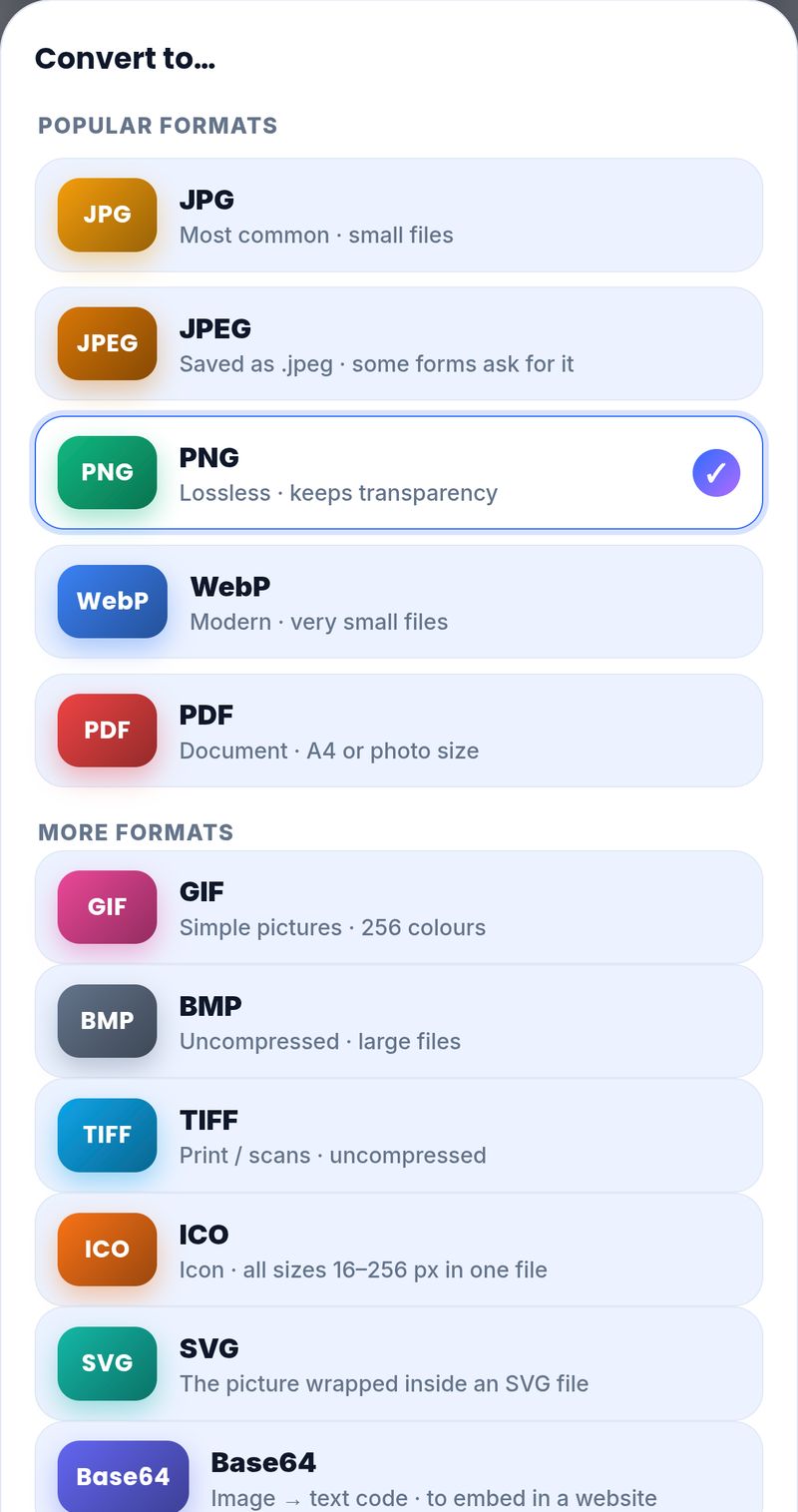
JPG (also written JPEG) is the standard format for photographs. It compresses by discarding detail that the eye barely notices, so photos become much smaller. The cost is that the loss is permanent, and saving a JPG again and again makes it worse. JPG has no transparency, so a logo saved as JPG sits on a solid background. It is the safest choice for exam and job forms, which almost always accept JPG.
PNG: sharp graphics and transparency
PNG keeps every pixel exactly, so it never loses quality when saved again. That makes it ideal for logos, screenshots, diagrams and text on a plain background, where blur at the edges would be obvious. It can also store transparent areas. The downside is size: a photograph saved as PNG can be several times larger than the same photo as JPG.
WebP: modern and small
WebP was designed for the web. It can do lossy compression like JPG and lossless like PNG, and it supports transparency, usually in a smaller file than either. Browsers show it everywhere, but some older apps, printing services and portals still do not accept it. That is why a picture saved from a website sometimes will not upload.
Quick comparison
| Format | Best for | Transparency | File size |
|---|---|---|---|
| JPG | Photos, forms | No | Small |
| PNG | Logos, screenshots, text | Yes | Large for photos |
| WebP | Websites, sharing | Yes | Smallest |
Which should you pick?
- Uploading to a form: use JPG unless the form says otherwise.
- Sending a screenshot or a logo: use PNG.
- Building a website: WebP, with a JPG fallback if you need wide compatibility.
- Printing a photo: use the highest-quality JPG or PNG you have, not a heavily compressed copy.
Converting safely
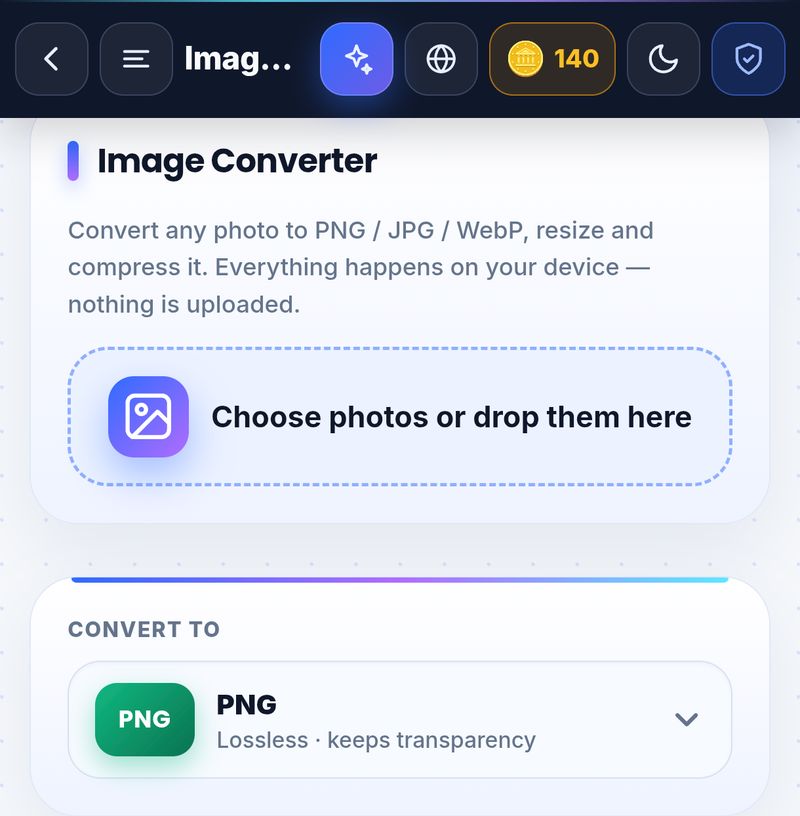
Converting between formats changes the container, not the original detail. Turning a low-quality JPG into PNG does not restore lost quality. Converting PNG to JPG replaces transparent areas with a solid colour. Renaming the extension does nothing, because the data inside stays in the old format. Use a real converter such as JPG to PNG, PNG to JPG or WebP to JPG, and keep your original file.
Quick decisions for everyday situations
If you are sending a photograph to a form or a friend, JPG is the safe choice because every device and portal opens it. If you are saving a logo, a screenshot with text or a graphic that needs a transparent background, PNG keeps edges clean and supports transparency, but the file is usually larger. If you are putting pictures on a website, WebP often gives a smaller file at similar quality, and modern browsers show it without trouble.
Compatibility is the real catch with WebP. Some older government portals, print shops and desktop programs still do not accept it. When a form says only JPG or JPEG, convert the image rather than renaming the file, because changing the extension does not change what is inside.
Remember that JPG is lossy. Each time you open, edit and save it again, a little detail disappears, and text and sharp lines suffer first. Work from the original whenever you can, and export a JPG only as the last step. For a document or signature scan where crisp lines matter, a PNG or a high-quality JPG at a moderate size is better than a heavily compressed one.
Quick answers
Which format is best for printing?
Keep the original camera JPG or a PNG at full resolution. Avoid copies that were compressed several times.
Why is my PNG so big?
Photos contain many fine colour changes, which PNG stores exactly. Converting a photo to JPG usually makes it far smaller.
Is WebP better than JPG?
It is often smaller at the same look, but JPG is more widely accepted. For forms and printing, JPG remains the safer choice.