 A4 Front Page Studio
Compress PDF Online: Make a PDF Smaller, Free and Private
A PDF too big to upload? The A4 Studio PDF Toolkit shrinks it in your browser. Pick light compression to keep quality, or strong compression for the smallest file, and set a KB target if a form asks for one.
How to do it
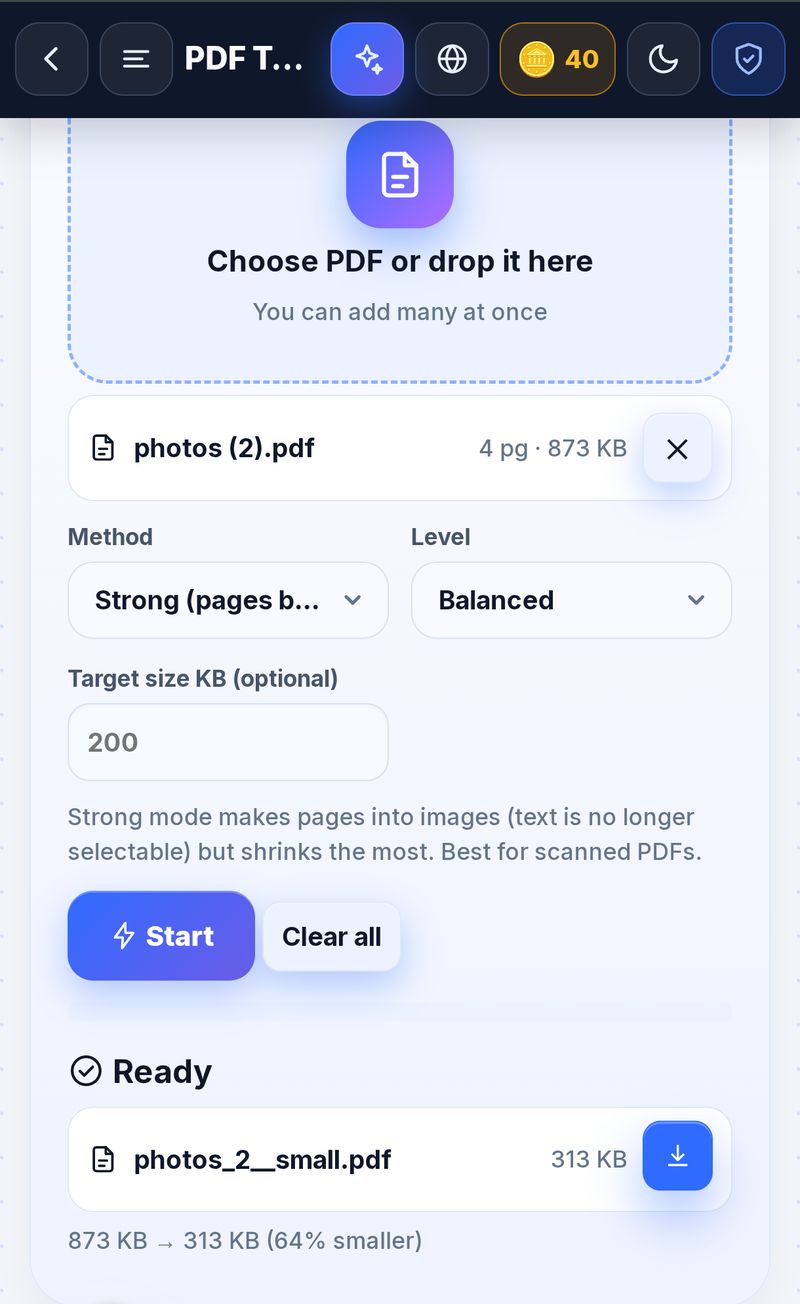
- Open the PDF Toolkit on the Compress tab.
- Add one or more PDFs.
- Choose light or strong compression, and enter a target in KB if you need one.
- Compare the before and after sizes, then download.
Why are PDFs so large?
Scanned pages and photos inside a PDF are the usual cause. A phone scan can be several MB per page. Compressing re-saves those images at a lower size, which cuts the file a lot while text stays readable.
Tips
- Start with light compression and check the result is readable.
- Use strong compression only when the size limit is tight.
- Scanning at a lower resolution to begin with also helps.
- Keep the original; compressed files cannot be restored.
Compressing a PDF to a target size: 100 KB, 200 KB and beyond
Most upload forms do not ask for “a smaller PDF”. They ask for a number: 100 KB for a scholarship certificate, 200 KB for a job application, 500 KB for an address proof. The method is the same each time. In the Compress tab, pick strong compression, type the limit as the target in KB, and check the size shown in the result before you download.
What changes between limits is how realistic the target is for your file. A PDF that is mostly typed text is already tiny, so even 100 KB is easy. A PDF made from phone photos of paper pages is a stack of large pictures, and each page can be 1–3 MB on its own. For those files the limit decides how many pages you can include.
- Around 100 KB: realistic for one or two scanned pages, or a short typed document. Expect softer images, so check that small print is still readable.
- Around 200 KB: a comfortable limit for two to four pages, a marksheet with a photo, or an ID proof. You can usually keep a higher quality setting.
- 500 KB and above: most scans fit with light compression. Use strong compression only if the portal rejects the file.
If the file will not reach the target
First remove pages the form does not need, using Split PDF. Second, rescan at a lower resolution: 150 DPI is enough for reading on screen, while 300 DPI or more makes files much larger. Third, avoid colour for plain text pages, because a grayscale scan is smaller. Compress the file only after these steps, not before.
Always keep your original file. Compression discards image detail, so you cannot get the quality back from the smaller copy.
Troubleshooting
- A scanned PDF is still large: scans are pictures, so stronger compression helps most; text-only PDFs are already small.
- The text looks blurry after compressing: choose light compression, or compress only after splitting off the pages you do not need.
- The PDF will not open or is password protected: remove the password first, then try again.
- The target in KB is too small for the page count: split the file into parts or remove pages you do not need.
A quick example
A 10-page PDF made from phone photos of documents can be many MB. Choosing stronger compression usually shrinks it a lot, while a typed document may barely change. Compare the before and after sizes and keep the original in case you need better quality later.
Common questions
Is it free to compress a PDF?
Yes. It is free and needs no account.
Does it upload my PDF?
No. Compression happens on your device.
Will quality drop?
Light compression keeps it close to the original; strong compression lowers image quality to save space.
Can I set an exact size?
You can enter a KB target. Very large scans may not reach a very small target, so try strong mode or fewer pages.
Reducing size without making text unreadable
PDF size depends mostly on what is inside. A typed document with only text is small, while a scan is a set of pictures and can be very large. Therefore the biggest savings come from shrinking the images, not from the text. If you have a choice, scan at a moderate resolution in the first place, such as 150 to 200 DPI for ordinary documents.
Compress in steps. Apply a modest level first, check the size, and only go stronger if you still exceed the limit. Heavy compression makes small text, stamps and signatures blurry, which can lead to rejection for being unreadable even if the size is accepted. Zoom to 100 percent on a few pages before you upload.
Avoid compressing the same file repeatedly, because each round removes more detail. Keep your original scan and create a fresh compressed copy each time you change settings.
If the file is still too large, consider splitting it into logical parts, removing blank pages or scanning in black and white where the portal permits. Name the final file clearly, and always open it once to confirm that every page is present.