 A4 Front Page Studio
Split PDF and Delete Pages Online: Free and Private
Only need a few pages from a big PDF? The A4 Studio PDF Toolkit pulls out the pages you choose, or removes the ones you do not want, right in your browser. Your file stays on your device.
How to do it
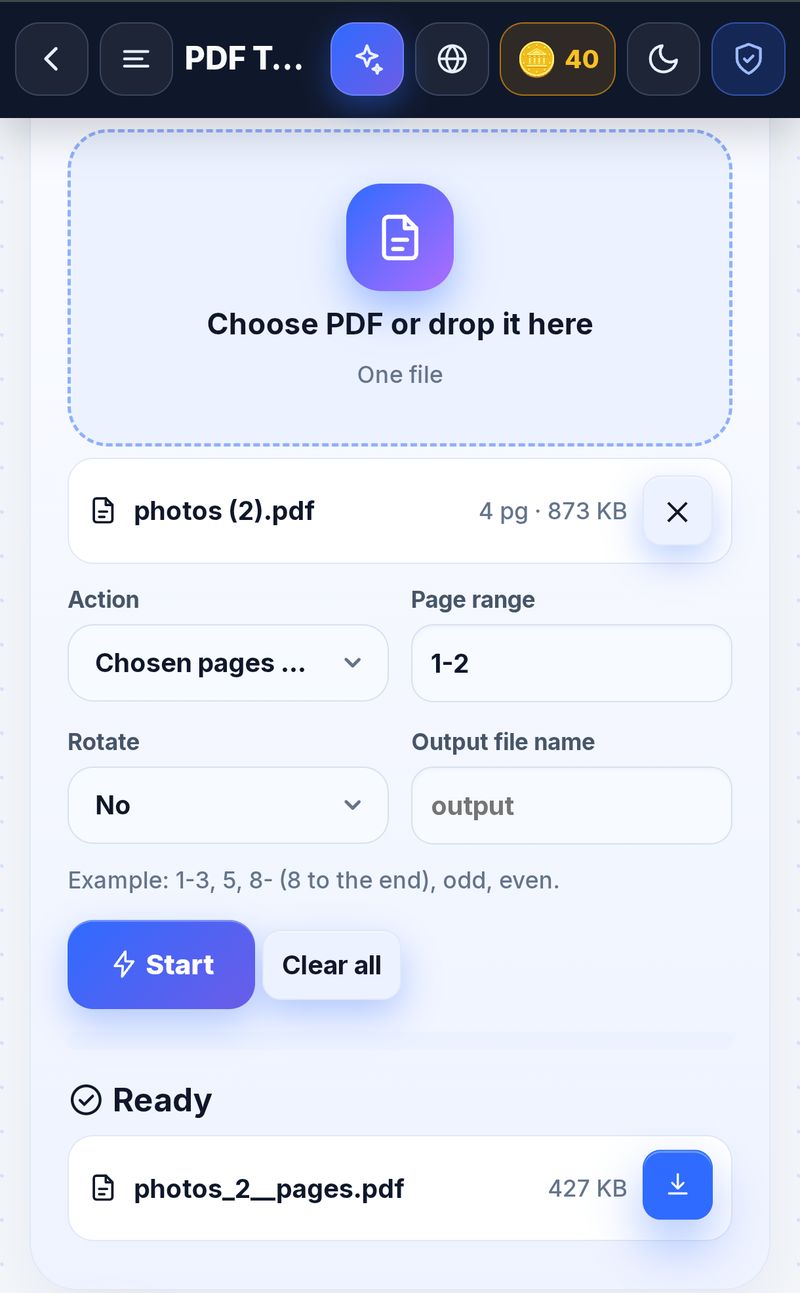
- Open the PDF Toolkit on the Split / Delete tab.
- Add your PDF.
- Type the pages you want, such as 1-3, 5, 8, or choose odd or even pages.
- Download the new PDF, or one file per page.
Why split a PDF?
Many upload forms limit file size or accept only specific pages. Splitting lets you send just the marksheet page, or remove a blank or private page before sharing. It is also useful for cutting one chapter out of a long scan.
Tips
- Page numbers count from the first page of the file, not the printed number.
- Keep the original PDF; the split result is a new file.
- Use Merge PDF to join pieces back together.
- If the result is still too big, try Compress PDF.
Troubleshooting
- Wrong pages came out: check the page numbers against the preview, and remember the first page is number 1.
- You need several separate ranges: extract them one at a time, or use a list such as 1-3, 5.
- The result is still large: compress the extracted PDF afterwards.
- The file will not open: check whether it is password protected.
A quick example
Suppose a 20-page file holds your application at pages 2 to 4 and the portal wants only those. Select pages 2 to 4, download the new PDF, and compress it if the portal also has a size limit.
Common questions
Is splitting a PDF free?
Yes, it is free with no account.
Can I delete pages instead of extracting?
Yes. Choose the pages to remove and download what is left.
Is my PDF uploaded?
No. The work happens in your browser.
Does it work on a phone?
Yes. It runs in a mobile browser too.
When splitting or deleting pages is the better fix
Many upload problems are really page problems. A portal that asks for only the first page of a marksheet, or a form that rejects a 40-page file, needs fewer pages, not stronger compression. Taking out the pages you do not need keeps the quality of the rest and usually brings the size down more than compressing does.
- Extract a range: pick pages such as 1–2 or 5 only to make a new file from part of a longer document.
- Delete pages: remove a blank page, a cover sheet or a duplicate scan from the middle of a file.
- Split into parts: break a long file into smaller ones when a portal accepts several uploads but each has a size limit.
Check the page numbers against a preview before you download, because a scan with a blank back page shifts every number after it by one. Keep your original PDF untouched and work on a copy, so that you can always go back to the full document.
Checking the result before you share it
After splitting, open the new PDF and confirm it holds exactly the pages you wanted. This matters most when you remove a private page, such as an ID number you do not want to share. Keep the original untouched in a separate folder and send only the new file, named clearly so you can find it later.
When splitting helps, and how to avoid mistakes
Splitting is useful when a portal accepts only a limited file size or asks for separate uploads, for example one file for certificates and another for identity proof. It is also handy when you want to share a few pages from a long document without sending everything.
The most common confusion is page numbers. The number printed on the page is often different from the position of that page in the PDF, because covers and front matter may not be numbered. Open the file in a viewer first and note the position numbers you need, such as pages 1 to 3 and 4 to 10.
After splitting, open each new file and check the first and last page. Name the parts clearly, for example name-identity-proof and name-certificates, rather than leaving default names that you will not recognise later. Keep the original file untouched in case you realise you split at the wrong place.
If a file will not split, it may be password protected or damaged. Remove the password in a viewer you trust, or ask the sender for a fresh copy, and try again.