 A4 Front Page Studio
Merge PDF Online: Combine Files into One, Free and Private
Need one PDF instead of many? The A4 Studio PDF Toolkit joins several PDFs, and even photos, into a single file in your browser. Files never leave your device, so it is safe for forms, marksheets and ID copies.
How to do it
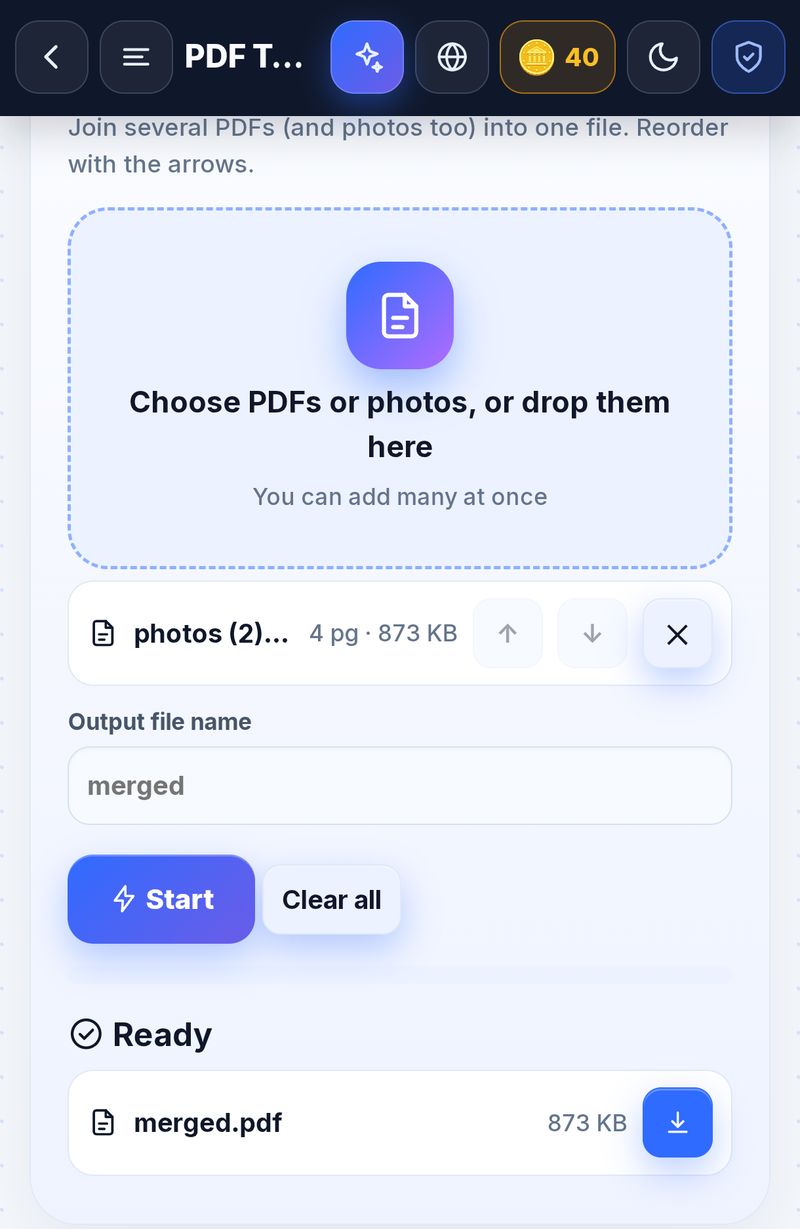
- Open the PDF Toolkit on the Merge tab.
- Add your PDFs or photos, or drop them on the page.
- Use the arrows to put the files in the right order.
- Press merge and download the single PDF.
When do you need to merge PDFs?
Online forms usually accept only one PDF. Merging lets you combine an application, certificates and ID proof into one upload, or join scanned pages that came as separate files. Students also merge assignment parts before submitting.
Tips
- Check the order before merging; it is hard to fix later.
- Name the output clearly, for example application-final.
- If the merged file is too big, run it through Compress PDF.
- Keep the original files until the upload is accepted.
Troubleshooting
- The pages are in the wrong order: reorder them before you download the merged file.
- A photo is sideways or upside down: fix its orientation before adding it.
- The merged file is too large for a form: compress it afterwards with the Compress PDF tool.
- One file will not add: check that it is not password protected or damaged.
A quick example
A common job is to join an application form, an ID scan and a certificate into one PDF for a portal that accepts a single file. Add them in the order the portal asks for, check the page order, download the merged PDF and compress it if it is over the limit.
Common questions
Is merging PDF free?
Yes. It is free and needs no account.
Are my files uploaded?
No. Everything runs on your device, so nothing goes to a server.
Can I merge photos with PDFs?
Yes. You can mix PDFs and photos in one merge.
Is there a page limit?
There is no fixed limit, but very large files can be slow on an old phone.
Getting the order and size right when you merge
Merging is simple, but a few habits save time. Put the files in the order the reader should see them before you combine, since reordering after the fact means starting again. If the final file will be uploaded to a portal, think about its size limit in advance: the merged file is roughly the total of the parts.
Typical uses
- Application packs: an ID proof, a marksheet and a certificate as one file when the portal accepts only a single upload.
- Assignments: a cover page made in the Front Page Maker followed by the written pages, so the work is submitted as one document.
- Scanned receipts: several phone scans combined into one file for an expense claim.
If the merged file turns out too large, compress it afterwards with Compress PDF. Mixed page sizes are fine, though a page scanned smaller than A4 may print with extra margins. Name the result clearly, for example rahul-application-documents.pdf, so the person receiving it knows what it contains.
Prepare your files before you merge
A merged PDF is only as tidy as the files that go into it. Before you combine anything, decide the page order on paper. Applications often expect a specific sequence, such as the form first, then the identity proof, then the certificates, and a wrong order can slow down a review.
Check each file on its own. Rotate sideways pages, remove blank pages and make sure none of the files is password protected, because a locked file cannot be combined until you unlock it. If some pages are scanned and others are typed, expect the file size to jump, since scanned pages are pictures and take much more space.
After merging, scroll through the whole result. Look at the first and last page of each original, confirm the page count matches what you expected and check that nothing is cut off. If the combined file is above a portal's limit, reduce it by compressing the large scanned pages instead of deleting content.
Give the final file a clear name, such as your name and the document type, with no special symbols, and keep the original separate files in case you need to change one page later.