 A4 Front Page Studio
How to Print from Your Phone: Home Printer, Shop and PDF Tips
Many students now prepare everything on a phone and need it on paper by morning. You can print directly to a home printer, or send a file to a print shop. In both cases the quality comes down to a few settings and one rule: send a PDF.
Option 1: print to a Wi-Fi printer
Most modern printers connect to the same Wi-Fi network as your phone. iPhones print through AirPrint, and Android phones use the built-in print service or a plugin from the printer's maker. Open the document, choose Print from the share or menu button, pick the printer, set A4 and the number of copies, and press print. If the printer is not found, check that both devices are on the same network and that the printer is switched on.
Option 2: send a PDF to a print shop
Save the finished work as a PDF, so that the layout cannot shift. Send it by email, a messaging app as a document or a cloud link, or copy it to the shop's pen drive. Tell the shop the page size, the number of copies, colour or black and white, and any paper preference. Our print shop tips cover what to check.
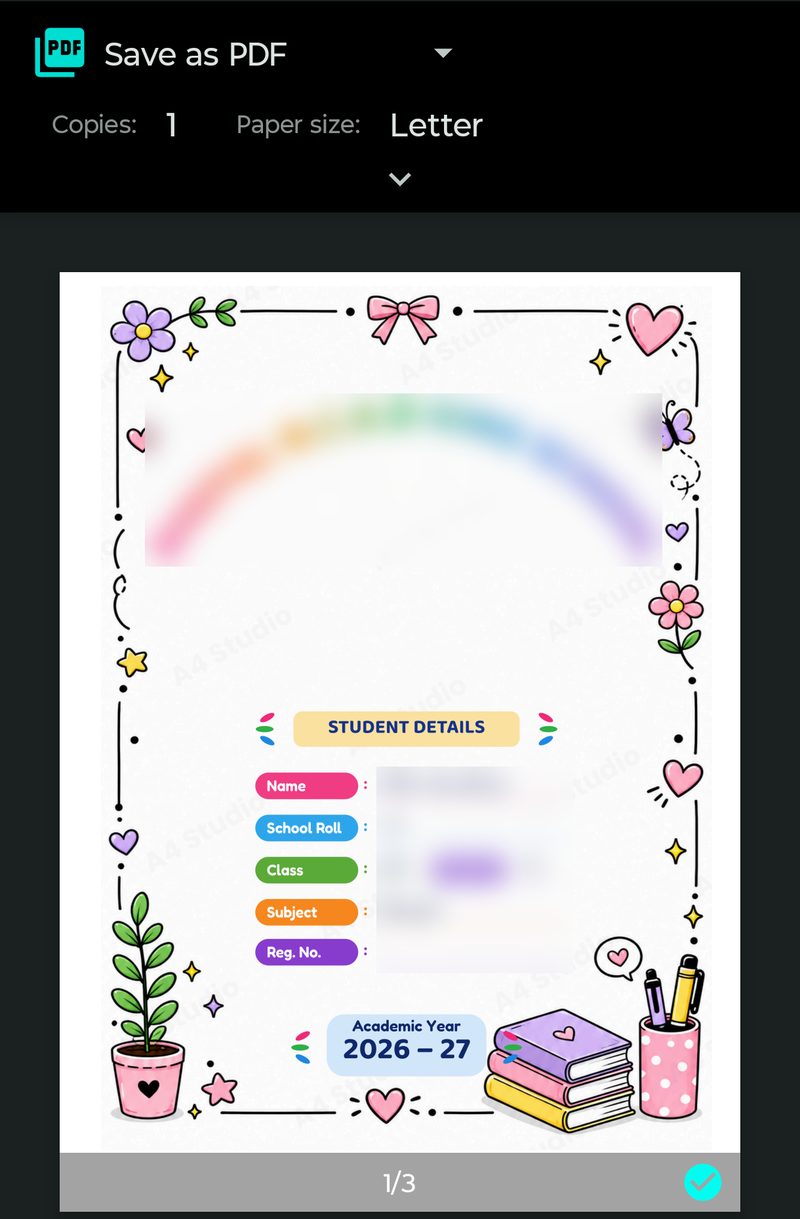
Settings to check on the print screen
- Paper size: A4, matching your document.
- Scale: choose "actual size" or 100%, not "fit to page", unless the page is not A4. Fit-to-page shrinks everything and changes margins.
- Orientation: portrait for most school pages.
- Colour: black and white for text-only pages to save ink.
- Quality: normal for text and best for photos.
Printing a photo
Send the original photo, not a copy from a chat. Choose photo paper if you have it. If you are printing passport-size photos, arrange several on one sheet with the Photo Print Studio, save the sheet and print it at 100% scale.
Common problems and fixes
- Text cut off at the edge: keep content 10 mm inside the page edges, and print at actual size.
- Blurry print: the image has too few pixels, or a screenshot was used. See our DPI and pixels guide.
- Wrong page size: set A4 in the document and on the print screen.
- Fonts changed: export to PDF before sending, instead of sending an editable file.
- Printer offline: restart the printer and the router, and try again.
A short checklist for a clean print
Whichever way you print, confirm three settings first: paper size A4, scale 100 percent and the quality level you want. Phones sometimes choose Letter size or shrink the page to fit, which changes margins and can cut text at the edges.
If you are using a shop, a PDF is usually safer than an image because the layout and fonts stay fixed on any computer. Send it as a document rather than as a photo through your chat app, and ask the shop to open it before printing so you can check the first page.
For colour work such as a front page, ask whether the shop prints in full colour and how it is priced, since colour pages usually cost more than black and white. If you only need one copy, print one page first and check the result before ordering the rest.
At home, keep the printer on the same Wi-Fi network as your phone and make sure the printing service for your printer brand is installed or enabled. If the printer does not appear, restart both devices, then try saving the file as a PDF and opening it in a PDF viewer before printing.
Quick answers
Can I print without a printer at home?
Yes. Send a PDF to a nearby shop, or ask the shop to print from a cloud link. Take the file with you as a backup.
Why does my phone print look smaller?
The print scale is probably set to fit to page. Choose actual size or 100%.
Is it safe to send documents to a shop on a chat app?
Send only what is needed, and ask the shop to delete the file afterwards. For ID documents, use a pen drive if possible.