 A4 Front Page Studio
Photo Print Studio: Free Passport and ID Photo Sheet Maker
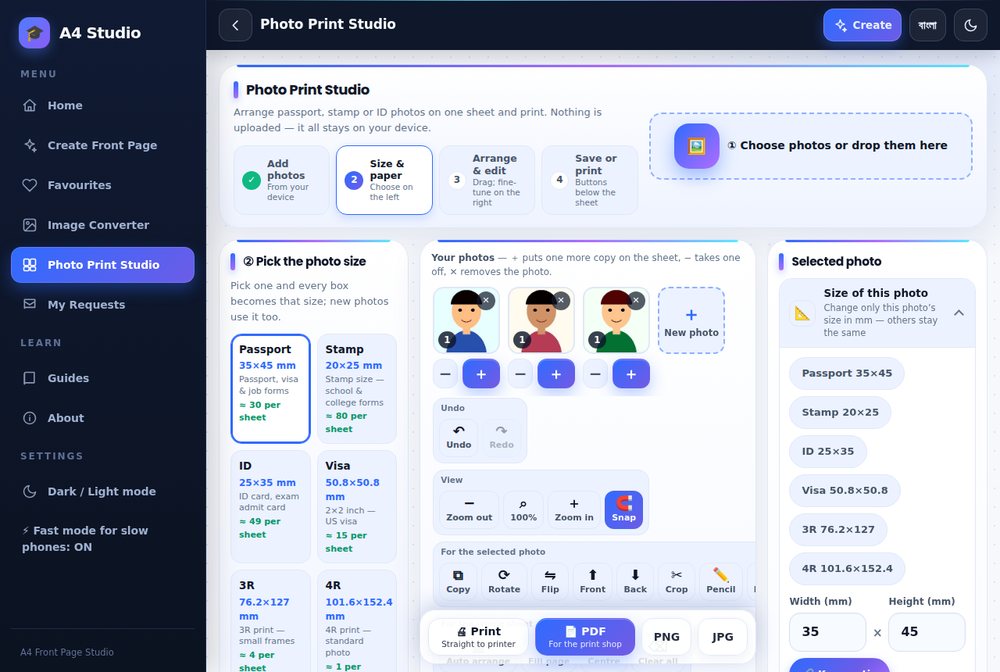
The Photo Print Studio arranges passport, stamp, ID and other photos on a single sheet so you can print many copies at once. You add a photo, choose the size and the paper, arrange copies on the page and then print or save the sheet. It runs in your browser, so your photos stay on your device and nothing is uploaded. This page explains what the tool does and how its four steps work. For a full walkthrough with printing and cutting advice, read our guide on printing passport photos at home.
Four steps
- Add photos from your device, one or several at once.
- Size and paper: choose a preset size such as Passport 35 × 45 mm, Stamp, ID, Visa or 3R and 4R, or type your own width and height in millimetres, then choose the paper.
- Arrange and edit: place the copies, move, zoom, rotate, flip, crop and reorder them.
- Print or save as a PDF, PNG or JPG.
Features
- Several photos on one sheet, with a set number of copies for each
- Common presets plus custom sizes in millimetres
- Undo and redo
- Zoom in and out and a snap option to line photos up
- Copy, rotate, flip, bring to front, send back and crop for each photo
- Direct printing, or PDF, PNG and JPG downloads for a print shop
- Works offline once loaded, with no upload of your photos
Tips for good results
- Start with a sharp, well-lit, full-size photo, not one saved from a chat app.
- Print one test sheet on plain paper and measure a photo with a ruler.
- Print at 100 per cent on the correct paper size; see printing correctly.
- Check the receiving office’s photo rules first, since they differ by country and purpose.
Good to know
The tool lays out and prints photos; it does not guarantee that a photo meets an official specification. Background, lighting and face position are your responsibility, so follow the application instructions. If a sheet looks soft when printed, read how to fix a blurry print. If a form needs a smaller file, use the Image Converter.
Why use a sheet instead of single prints
Studios often sell photos in fixed packs, and a pack of eight is wasteful if you need two. Laying photos out on one A4 sheet lets you print exactly the number you need, mix different people or sizes on one page and reprint any time. If you take the sheet to a print shop, you pay for one print instead of a set. The tool shows roughly how many photos of the chosen size fit on the sheet, so you can see the saving before you print. A passport-size preset fits a large number on A4, while 3R and 4R prints fit only a few.
Arranging a mixed sheet
You can load several photos at once, give each its own number of copies and let the tool fill the sheet. You can also change the size of one selected photo without changing the others. This is useful when a family needs passport photos for two people and a stamp-size photo for a school form on the same sheet. Use the snap option to keep rows and columns lined up, and use the zoom control to check the edges closely before printing.
Before you start
- Find the size your form asks for, in millimetres.
- Pick a photo with a plain background and even light.
- Decide whether you will print at home or at a shop.
- If printing at home, load photo paper if the office requires it.
Step-by-step instructions for each of these, including cutting, are in the full guide, and the paper size numbers are in the A4 size guide.
Privacy
Photos are processed on your device. See the privacy policy for the full details.
Open the free A4 Front Page Studio →