 A4 Front Page Studio
PDF to JPG: Turn PDF Pages into Images, Free and Private
Need a PDF page as a picture? The A4 Studio PDF Toolkit turns the pages of a PDF into JPG or PNG images in your browser. Choose all pages or just a few. Nothing is uploaded.
How to do it
- Open the PDF Toolkit on the PDF → Images tab.
- Add your PDF.
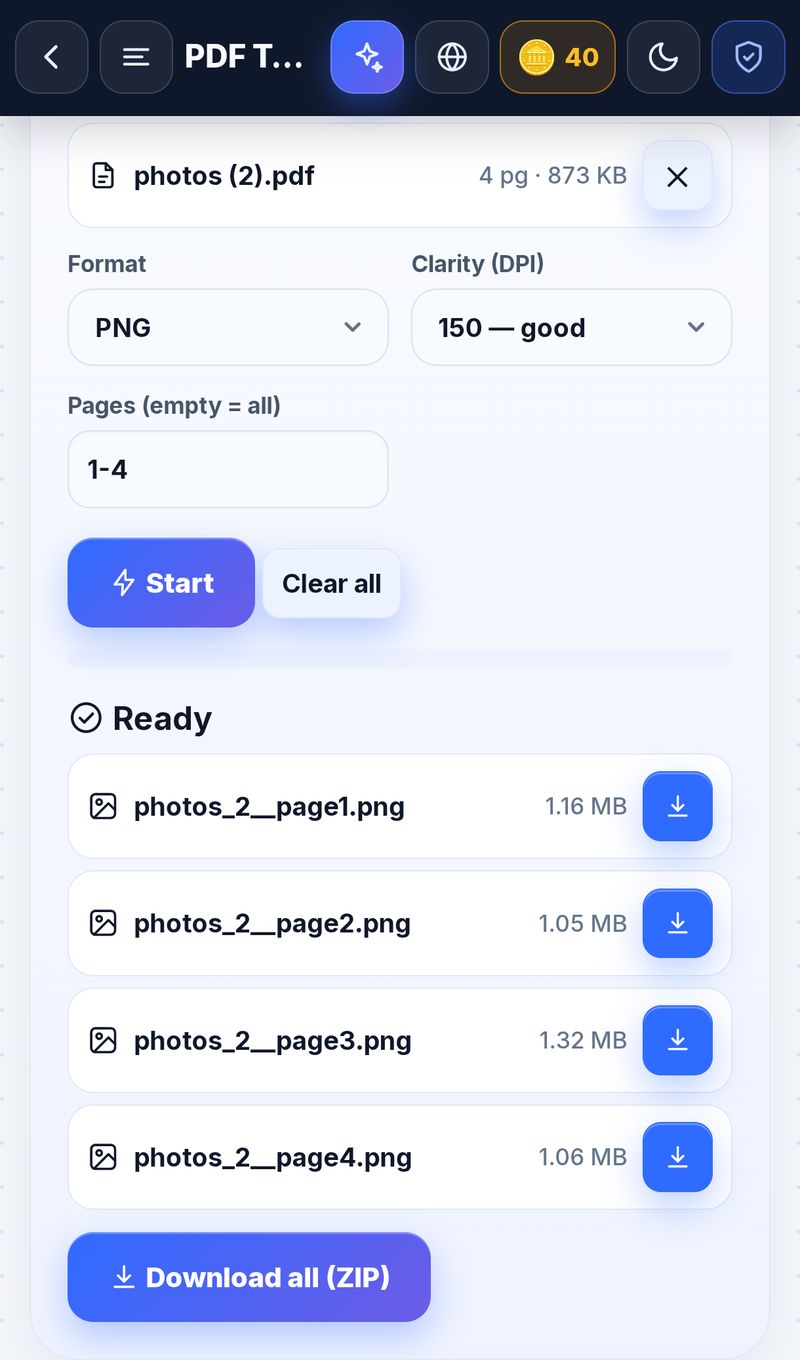
- Pick JPG or PNG, the quality (DPI) and, if you want, a page range.
- Download the images one by one or all together.
Why convert a PDF to JPG?
Some sites accept only images, and chat apps or slides are easier with a picture than a PDF. A JPG of a marksheet page or a signature scan can also be uploaded where PDFs are not allowed.
Tips
- Use a higher DPI for sharp text, a lower one for a small file.
- JPG is smaller; PNG is better for text and line art.
- Convert only the pages you need to save time.
- To make the images smaller afterwards, use Reduce Image Size in KB.
Troubleshooting
- The text looks blurry: choose a higher quality before exporting.
- You get too many files: pick only the pages you need instead of the whole PDF.
- The images are too large: choose JPG rather than PNG, or reduce the quality a little.
- The PDF is protected: remove the password first.
A quick example
If a form needs the first page of your PDF as an image, pick page 1, choose JPG, set a good quality and download it. For a page with sharp text or thin lines, PNG can look cleaner, at the cost of a bigger file.
Common questions
Is PDF to JPG free?
Yes, free with no account.
Can I convert one page only?
Yes. Enter the page numbers you want.
Is my PDF uploaded?
No. The conversion happens on your device.
Can I get PNG instead?
Yes. Choose PNG before converting.
Choosing between JPG and PNG for PDF pages
Turning a PDF page into an image is useful when you need to post it in a chat, insert it into a slide, or upload it somewhere that does not accept PDF. The format you choose changes the result.
- JPG suits pages with photos. The files are small and easy to share, but fine text edges can look slightly soft.
- PNG suits pages that are mostly text, line drawings or a logo. Edges stay crisp, but the file is larger.
Quality and size
The resolution of the image decides how sharp it looks. A low setting gives a small file that is fine for chat but blurry when zoomed. A higher setting is better for printing or for text you need to read closely. Choose the lowest setting that still looks sharp at the size where you will use it. If you only need one or two pages, select just those pages instead of exporting the whole document.
Choosing JPG or PNG, and the right quality
For a scanned marksheet or a page of mostly text, PNG keeps letters crisp but the file is larger. JPG is smaller and fine for photos, stamps and signatures. If a portal sets a size limit, start with JPG at a medium quality, check the result at full zoom, and only raise the quality if small text is hard to read.
- Sharing in chat or slides: a medium quality is enough and keeps the file small.
- Printing: export at a higher quality so the page does not look soft on paper.
- Many pages: convert only the range you need, for example 2-4, instead of the whole document.
Before uploading, open the first image and zoom in on the smallest text, the stamp and the signature. If they are readable on your screen they will be readable to the person checking your form.
Getting sharp images from a PDF
Converting a PDF to JPG turns each page into a picture, so the quality of the result depends on the resolution used. A low resolution creates small files but blurry text, while a higher one keeps the writing sharp at the cost of a bigger file. For text pages that you may zoom in on, choose a higher setting; for quick sharing on a phone, a medium setting is usually enough.
JPG compression can leave faint noise around letters. If the page is mostly text or line art and sharpness matters, PNG is cleaner, although the file is larger. If a form insists on JPG, export at a good resolution and check the text at 100 percent zoom.
Each page becomes a separate image, so file names matter. Keep them in order, such as page-01, page-02 and so on, otherwise they can be arranged wrongly when you upload or combine them again. If you only need one page, convert only that page rather than the entire document.
Finally, remember that converting a scanned PDF does not improve it. The image will only be as clear as the original scan.