 A4 Front Page Studio
How to Make Front Pages for a Whole Class at Once
Making one front page takes a few minutes. Making forty is a different job, and it is the one many class teachers and print-shop owners face at the start of every term. Typing each name, roll number and class by hand is slow and invites mistakes. A better method is to set the design once, prepare a clean list and let the tool produce every page. This guide explains a practical workflow for batch cover pages, how to prepare the list, how the Batch feature in A4 Front Page Studio works, how to check the results and how to print or share them. It is written for teachers, class monitors and shop owners.
When batch makes sense
- A teacher wants matching covers for every student’s subject file.
- A school office needs a cover for each student in a class.
- A print shop gets a class list from a school and must deliver ready covers.
If each student needs a different design or a personal photo, batch is not the right tool. It is for pages that share the same design, school name and layout.
Step 1: Decide the shared details
Batch keeps your current design, school name and layout for everyone. Only the student-specific details change. Before you start, decide:
- The design and text template for the whole class
- The school name, the subject, the teacher and the session
- Which student details appear: name, class, section, roll and registration number
Step 2: Build the first page
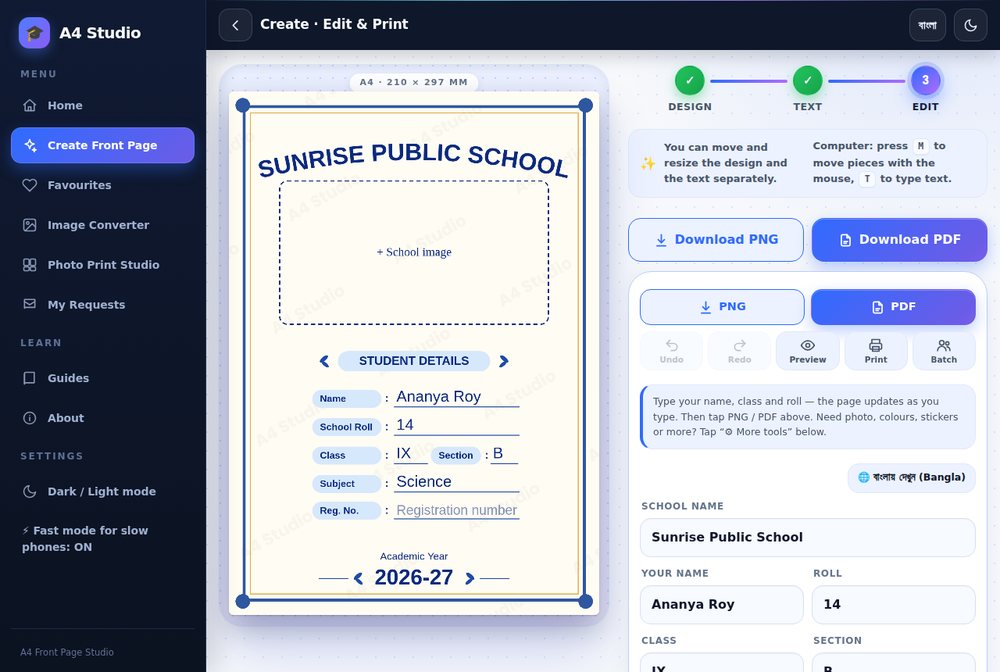
Open the editor, choose a design and text template, and fill every shared field. Add the school photo or logo if you want it on every page. Check spelling carefully now, because an error here is copied to every page. Adjust colours and positions until the page looks right.
Step 3: Prepare the list
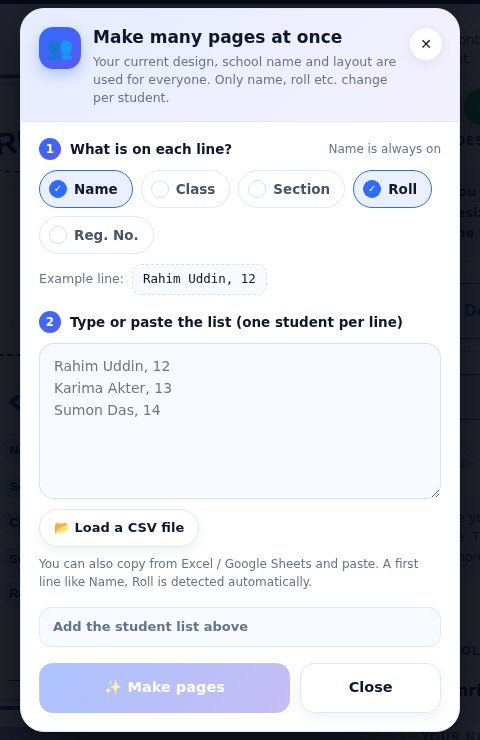
The Batch box takes one student per line. Name is always included, and you can switch on Class, Section, Roll and Reg. No. The line follows the order of the chips you chose. With Name and Roll on, a line looks like this: Rahim Uddin, 12. You can type the list, paste it from Excel or Google Sheets, or load a CSV file. If the first line is a heading such as Name, Roll, the tool detects it automatically. A single run makes up to 100 pages.
- Keep one student per row and one detail per column.
- Remove blank rows and stray spaces.
- Write names in the form your school wants, such as capitals or title case.
- Check roll numbers for duplicates.
Step 4: Make the pages
Tap Make pages. A progress bar shows the work. If your phone runs low on memory, the tool suggests fewer students, so on an older device do the class in two or three smaller runs.
Step 5: Check every page
When the pages are ready you see a preview of each one. Tap a page to enlarge it. Do not skip this. Check three things: names are spelled as in the list, no text is cut off on a long name, and the numbers line up with the right students. Long names are the most common problem, so look at the longest ones first. If something is wrong, go back with Edit list, fix the line and make the pages again.
Step 6: Print or save
- Print all pages sends every page to the printer in one go.
- PDF saves all pages in one file, named front-pages-batch.pdf, ideal for a print shop.
- ZIP saves each page as a separate image, handy if you want to send a student just their own cover.
Print one page first and check the margins before running the whole batch. The settings in how to print an A4 front page correctly apply here too.
Tips for print shops
- Ask the school for a spreadsheet, not a photo of a handwritten list.
- Confirm the design with the teacher on one sample page before making the rest.
- Keep the PDF as proof of what you printed.
- Number the printed stack by roll, so students collect the right page.
Mistakes to avoid
- Making the pages before proofreading the first one
- Mixing different class names in the same list
- Names so long they overflow the label
- Forgetting that every page shares the same design, so student photos cannot differ
- Printing the full batch without a test page
Pair the covers with matching inside pages
Consistent covers look best when the first pages inside match. See writing an acknowledgement and index and what a cover should include for a shared format you can hand to the whole class. More about the tool is on the Front Page Maker page.
Quick answers
How many students at once?
Up to 100 per run. Split bigger classes into several runs.
Are the student names uploaded anywhere?
The pages are made in your browser on your device. See the privacy policy for details.
Can each page have a different design?
No, batch uses the current design for everyone. Make unusual pages one at a time.
Build one perfect page, prepare a clean list, check the preview and print a test. With that routine a whole class of covers takes minutes, and the errors that creep into hand-typed covers largely disappear.
Open the free A4 Front Page Studio →