 A4 Front Page Studio
Front Page Maker: Free A4 School Project Cover Page Tool
The Front Page Maker is the main tool on A4 Front Page Studio. It helps you make a neat A4 cover page for a school project, a file or an assignment in a few minutes, without drawing anything and without installing an app. You pick a background design, pick a text layout, type your details and download or print the page. It is free, needs no account and works on a phone, a tablet or a computer. This page explains what the tool does, how its three steps work and what you can change before you print.
How it works: three steps
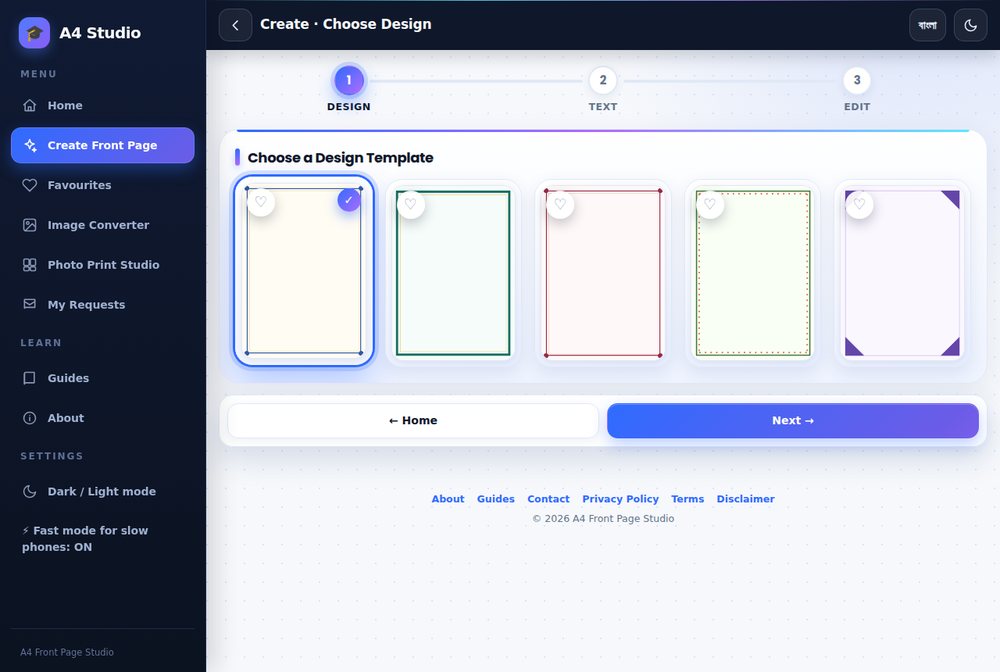
- Choose a design. A design is the background art: a border, a frame or a decorated edge.
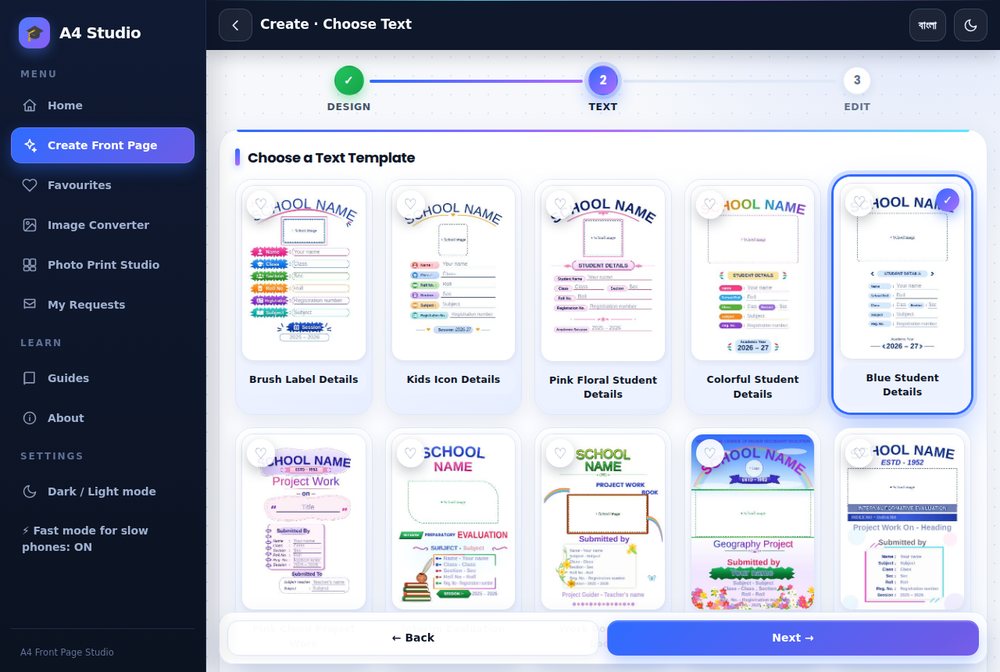
- Choose a text template. This sets how the school name, title and student details are arranged.
- Edit and print. Type your details, add a photo, change colours and download or print.
The editing screen
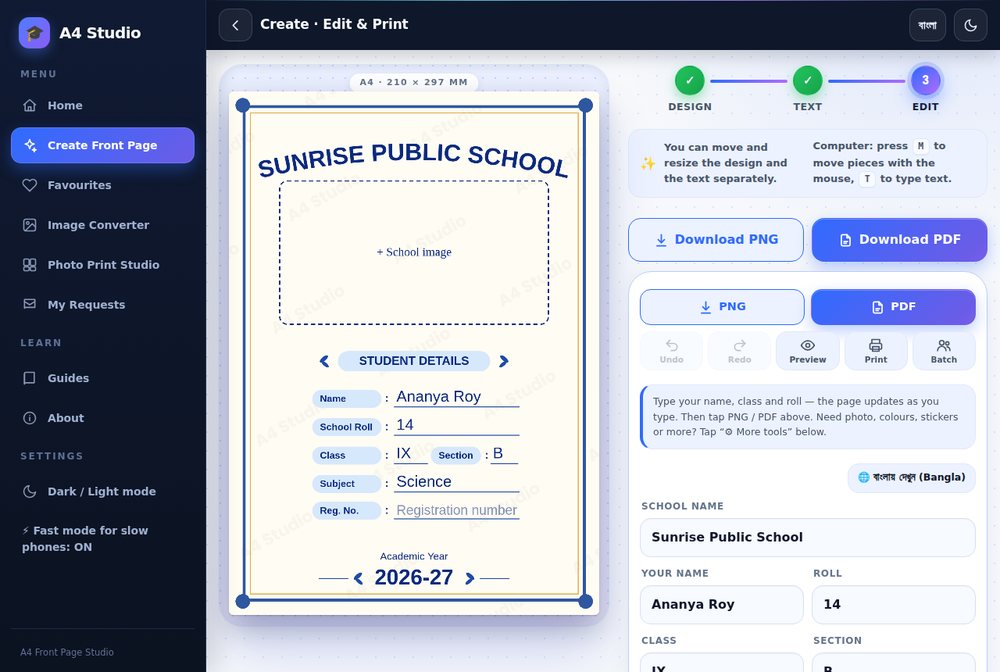
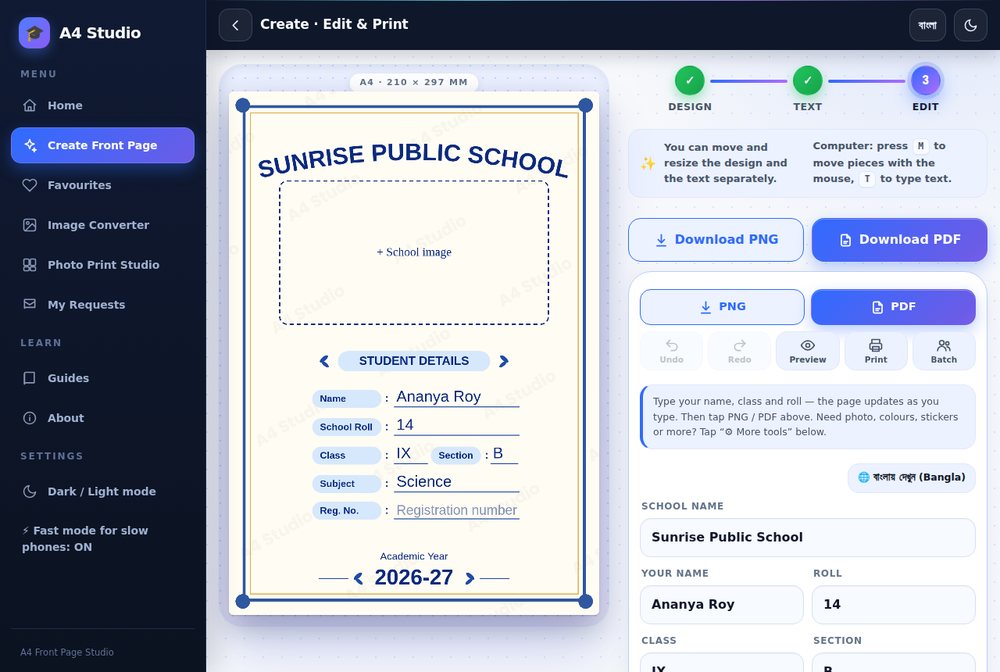
The editing screen shows the A4 page on one side and your fields on the other. The page updates as you type, so a spelling mistake or a name that is too long is visible straight away. A school name field, name, class, section, roll, subject, registration number and session are typical fields, though they depend on the template.
What you can do
- Add a school photo or logo in the photo box.
- Change colours of the page, then undo or redo as you experiment.
- Move and resize parts of the page. On a computer you can use the mouse; on a phone you can drag with a finger.
- Add stickers and extra lines of text.
- Preview the final page before downloading.
- Print margin guide and auto-shrink to avoid clipped edges.
- Save as PNG, Hi-res PNG (300 DPI) or PDF, or print directly.
- Batch: make many pages from a list of students.
- Bengali and English interface.
Examples made with the tool
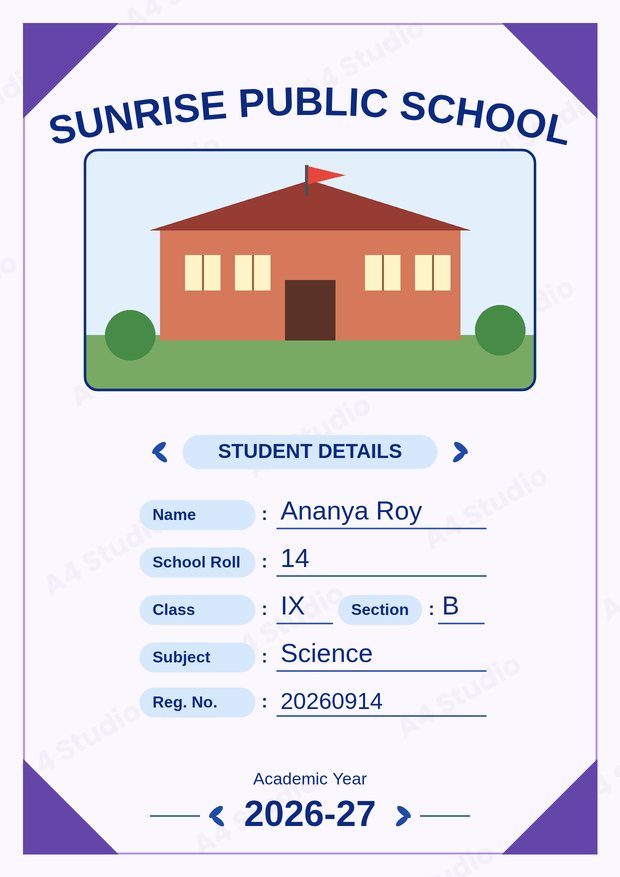
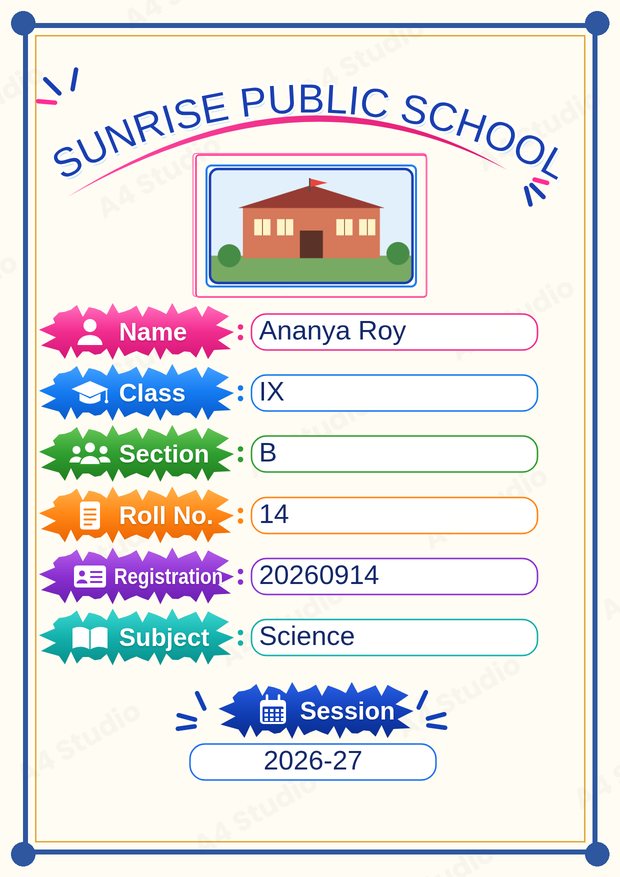
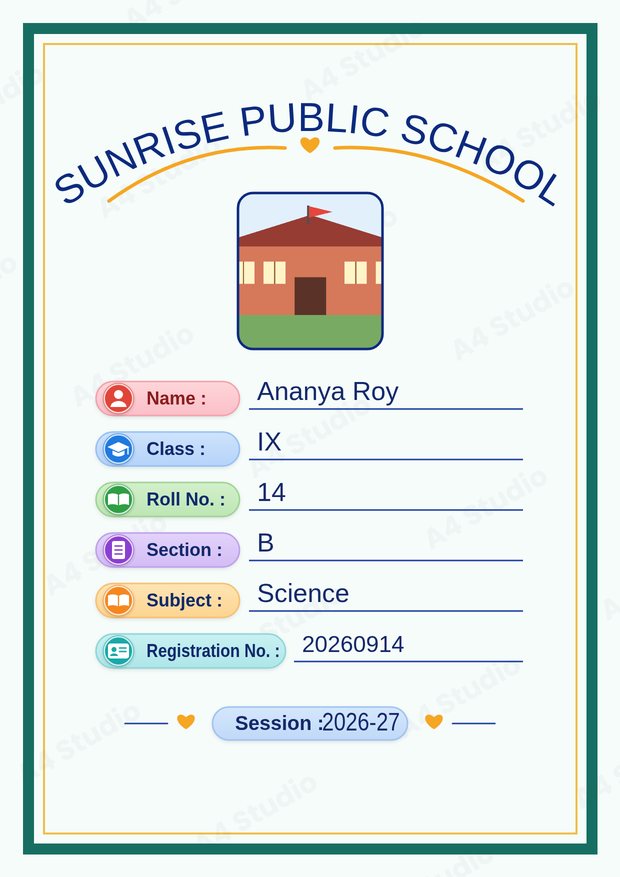
These covers all use the same details with different designs and text templates.
Who it is for
Students who need a neat cover quickly, teachers who want matching covers for a class (see the batch workflow), and print-shop owners who prepare covers for customers.
Common questions
Do I need to create an account?
No. You can make and download a page without signing in.
Can I use it on a phone?
Yes. The tool is designed to work on phones, tablets and computers, and you can drag pieces with your finger.
What formats can I save?
PNG, Hi-res PNG and PDF, or you can print directly. See which to choose.
Privacy
The page is made in your browser. You do not need an account, and your photo stays on your device. Details are in the privacy policy.
Guides to get the best result
- How to make a school project front page
- What to include on a cover page
- Fonts and colours
- Printing correctly and PDF or PNG
Good to know
Templates have a fixed number of fields, so a very long school name or title may need a smaller size. The tool works best in a modern browser, and large batches need enough free memory on your device. Always preview and proofread before printing.
Open the free A4 Front Page Studio →