 A4 Front Page Studio
Image Converter: Free JPG, PNG and WebP Converter and Compressor
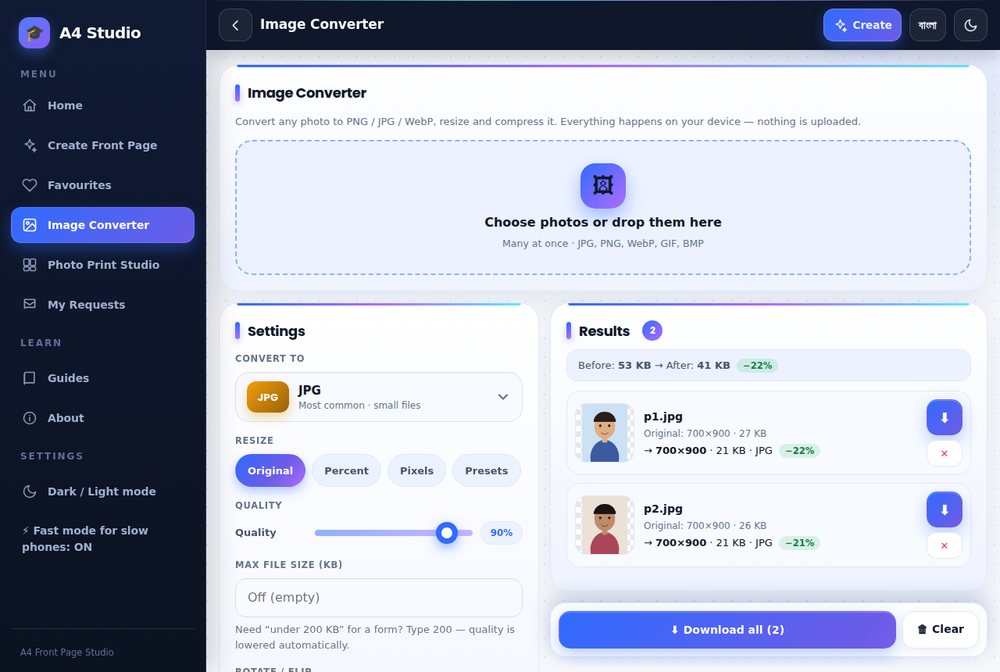
The Image Converter changes the format and size of your pictures right in the browser. Choose photos, pick JPG, PNG or WebP, resize them and compress them to a target file size, then download one file or all of them. Nothing is uploaded, so it is a safe choice for ID photos, signatures and school documents. This page explains what the converter does and how to use it. For advice on picking a format and getting under a size limit, read how to convert JPG, PNG and WebP.
How to use it
- Add pictures. Choose many at once or drop them on the page. JPG, PNG, WebP, GIF and BMP files can be used as input.
- Convert to: JPG, PNG or WebP.
- Resize: keep the original, scale by percentage, enter exact pixels or pick a preset.
- Quality: a slider for JPG and WebP.
- Maximum file size: type a limit in KB, for example 200, and the tool lowers the quality until it fits.
- Rotate or flip if needed, then download one file or everything.
Features
- Batch conversion of many photos at once
- Before and after file sizes shown for each picture
- Download all converted files with one tap, or clear the list
- Works on phones and computers
- Files stay on your device
Common uses
- Getting a photo under 50, 100 or 200 KB for an online form
- Turning a WebP image into a JPG that a site accepts
- Shrinking phone photos before sending them
- Preparing a photo before placing it on a front page; see the Front Page Maker
- Preparing ID photos before laying them out in the Photo Print Studio
Tips
- Keep your original and convert from it, not from a converted copy.
- Resize before lowering quality; it keeps pictures sharper.
- Use PNG for screenshots and graphics, JPG for photos.
- Do not shrink a file you plan to print; see fixing blurry prints.
Which format should you choose?
JPG is the best choice for photographs because it gives small files that every website and form accepts. PNG keeps every pixel and supports transparency, so it suits screenshots, logos and front pages. WebP often gives smaller files than JPG at similar quality, but some older programs and forms do not accept it, so convert to JPG when an upload is rejected. The full comparison is in the format guide.
Getting under a size limit
Online forms often accept only small files, such as a photo under 200 KB or a signature under 50 KB. The simplest route is to reduce the pixel size first, then choose JPG, then type the limit into the maximum file size box. The results list shows the size before and after for every picture, so you can see at once whether the file fits. If the picture starts to look blotchy, reduce the pixel size further instead of lowering the quality again.
Converting many pictures at once
If a form needs several documents, add them all together, apply one set of settings and use Download all. This is faster than converting them one by one, and it keeps the settings the same for every file. Check each result before uploading, because pictures of very different sizes may need slightly different settings.
Who it helps
Students filling exam and admission forms, parents uploading photos and signatures, and anyone who needs to send pictures without a huge file size. Because the files never leave your device, it is also a reasonable choice for personal documents.
Privacy
Conversion happens in your browser. See the privacy policy for the full details.
Open the free A4 Front Page Studio →